Note: This only checks the image resolution. This does not save or share your image.
Will My Image Look Good? (A Guide to Web vs. Print)
It’s the most common question in design: "It looks great on my phone screen, why can't we use it in the brochure?" The short answer: Screens are liars. They are very good at making low-quality images look "good enough." Printing, however, is much more demanding. Here is how to tell if your image is ready for the big leagues or if it should stay on social media.
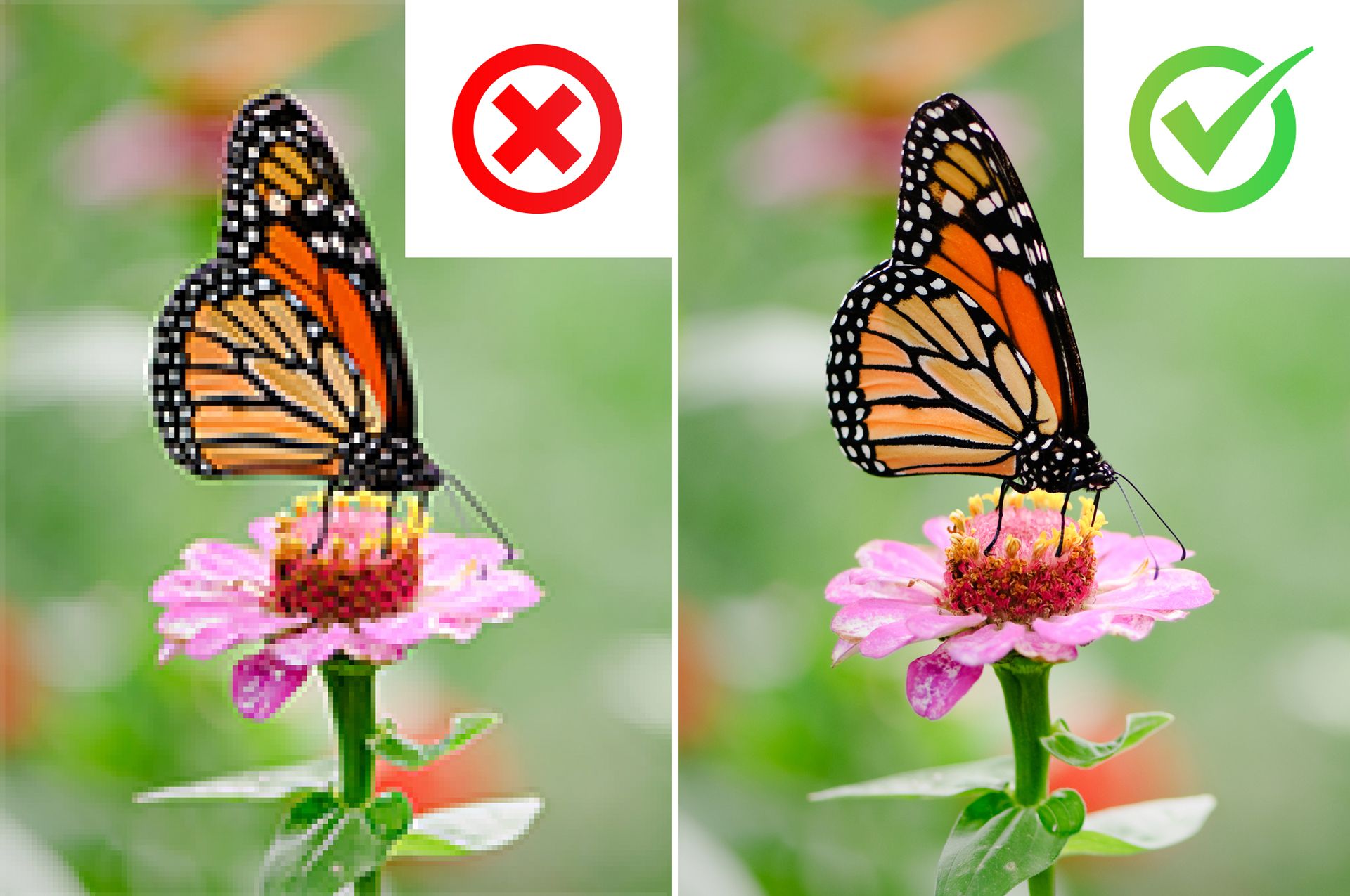
The Butter & Toast Rule
To understand the difference between Web and Print, think of your image like a knob of butter.
- Web Images (The Cracker): A website is like a small cracker. You only need a tiny bit of butter to cover it, and it looks thick and rich. This is why small files look great on Facebook or your phone.
- Print Images (The Giant Toast): Printing a brochure is like trying to butter a giant piece of sourdough. If you use that same "web-sized" knob of butter, you have to spread it so thin that you start seeing the holes in the bread.
In design, those "holes in the bread" are what we call pixelation—when an image looks blurry, grainy, or blocky.
Web vs. Print: At a Glance
| Feature | Web Quality (Screens) | Print Quality (Paper) |
|---|---|---|
| Goal | Load fast on a phone/computer. | Look sharp and professional. |
| Density | Low (not much detail needed). | High (lots of detail required). |
| Size | Usually measured in Kilobytes (KB). | Usually measured in Megabytes (MB). |
| Source | Screenshots, Social Media, Google. | Original photos, Professional stock. |
The "One-Way Street" Rule
When it comes to image size, there is one golden rule: You can always make a big image smaller, but you can never make a small image bigger.
Why we shrink images for the web
Large, high-quality images are "heavy." If we put a 10MB photo directly onto a website, the page would take forever to load, which frustrates visitors and hurts your Google ranking. We use platforms like Duda because they are smart—they allow us to take your high-quality "Master" image and optimize it so it loads lightning-fast on a mobile phone.
Why we can't "grow" images for print
If you send us a small, "shrunken" web image, we can't "un-shrink" it. Think of it like a piece of clothing: you can easily tailor a large suit to fit a smaller person, but you can't stretch a toddler's t-shirt to fit an adult without tearing the fabric.
Always start with the highest quality image possible. We can handle the shrinking for you!
The Color Mystery (RGB vs. CMYK)
Have you ever printed a bright, neon-blue image only to have it come out of the printer looking like a dull navy? You aren’t imagining things! This happens because screens and paper "create" color in two completely different ways.
RGB: The "Glowing" Color (For Screens)
Your computer, phone, and TV use RGB (Red, Green, and Blue) light.
- How it works: Think of your screen like a black room filled with millions of tiny colored flashlights. When you turn them all on, you get bright, vibrant, "neon" colors.
- The Vibe: Because it’s made of light, RGB is naturally very bright and punchy.
CMYK: The "Staining" Color (For Print)
Printers use CMYK (Cyan, Magenta, Yellow, and Black) ink.
- How it works: Think of this like painting on a white piece of paper. You are layering physical ink (pigment) to soak into the page.
- The Vibe: Ink can’t "glow." It is limited by the physical properties of the paper and the paint.
The "Vibrancy Gap"
When we take your RGB photo and convert it to CMYK for the printing press, some of that "glow" is lost.
- The Result: Bright lime greens might become forest greens; electric blues might become royal blues.
- The Pro Tip: Don't worry about converting the colors yourself! Send us your best-looking file. We use professional color-matching tools to ensure your print looks as close to your screen as possible, but keep in mind that paper will always look a little "softer" than a glowing screen.
A Note on Screenshots: Taking a screenshot of a photo "traps" it in RGB and "locks" it at a very low resolution. Even if the photo looks okay on your phone, a screenshot is the "junk food" of image files—it has no nutritional value for a printer! Always send the original file.
3 Ways to Check Your Image Quality
Before you send an image to your designer, run these three quick "health checks" to see if it’s print-ready.
1. The "300% Zoom" Test
This is the fastest "eye test" you can do.
- The Move: Open the image on your computer and zoom in until it looks three times larger than it actually is.
- The Result: If it starts looking "fuzzy" or you see jagged edges, it is Web Only. If it still looks crisp and clear, it is likely Print Ready.
2. The "Right-Click" Math
Check the actual "Dimensions" of the file to see how much data is really there.
- On Windows: Right-click the file > Properties > Details tab.
- On Mac: Right-click the file > Get Info.
| To print this size... | You need at least this many pixels... |
|---|---|
| Small (Stamp or Icon) | 500 pixels |
| Medium (Business Card/Postcard) | 1,200 - 1,800 pixels |
| Large (Full Page/Poster) | 3,500+ pixels |
Warning: If your dimensions start with a zero (e.g., 400 x 600), it’s almost certainly too small for anything other than a tiny spot on a website.
3. The "Weight" Check
Look at the file size (the "weight") of the image.
- KB (Kilobytes): These are "Lightweight" files. Great for email and websites, but usually too "thin" for high-quality printing.
- MB (Megabytes): These are "Heavyweight" files. If your file is 2MB or larger, it generally has enough "meat" to look beautiful in a printed brochure.
One Final Tip: Avoid the "Google Trap"
Most images you find on Google Images or save from a website have been "crunched" to make the website load faster. This process permanently deletes the fine details.
Think of it like a hamburger: Once you grind a steak into a burger, you can't turn it back into a steak. Once that detail is deleted for the web, a designer cannot "add it back" for print.
The Golden Rule: Always try to send the original, unedited file directly from your camera, phone, or professional photographer!
Frequently Asked Questions
What is the difference between image size and resolution?
Image size refers to the physical dimensions (width and height) of a file, while resolution (PPI/DPI) measures the density of detail within those dimensions.
What are pixels?
Pixels are the smallest individual units of color that combine to form a digital image; higher pixel counts result in greater visual clarity.
Why do images look sharp on phones but blurry when printed?
This occurs because digital screens require lower pixel density (typically 72 PPI) compared to professional printing, which requires high-density detail (typically 300 DPI).
Can I "upsize" a small image to make it high-resolution?
No; increasing the dimensions of a low-resolution file adds no new detail and results in pixelation or blurriness.
What is the standard resolution for web use?
The industry standard for web resolution is 72 PPI to balance visual quality with fast page load speeds.
What is the standard resolution for printing?
High-quality print production requires a minimum of 300 DPI to ensure sharp edges and accurate color representation.
How does image file size affect website speed?
Large file sizes (MB) increase page load latency, which can negatively impact user engagement and search rankings.
What is a JPEG file?
A JPEG is a compressed "lossy" format ideal for photography because it maintains good color range while keeping file sizes small.
What is a PNG file?
A PNG is a "lossless" format that supports transparent backgrounds, making it the standard for logos and digital graphics.
Why is my logo blurry on high-definition screens?
Modern Retina and high-definition displays have double the pixel density of older screens, requiring images to be saved at 2x resolution to appear sharp.